The Missing Piece: My Ultimate Polarion Development Setup on macOS with Docker & VS Code
Upgrade your Polarion workflow: Docker, VS Code, and AI integration. Achieve 15-30 second redeploys and a streamlined development experience that actually keeps up with your pace.


If you’ve been following my blog, you know I’ve been on a journey to modernize my Polarion development workflow. I’ve written about why I prefer developing in VS Code and how to set up a Dockerized Polarion instance.
But until now, these were two separate worlds. I had the editor I loved and the infrastructure I needed, but the bridge between them was missing.
Today, I’m bringing it all together. I have successfully moved my entire workflow to macOS, running Polarion in a local Docker container with JDWP enabled, and connected it seamlessly to VS Code.
Here is why I did it, and—more importantly—how you can do it too.
The Motivation: Why change a running system?
Why go through the hassle of configuring Docker and custom scripts when Eclipse exists?
1. The Digital Nomad Factor (macOS)
I am a convinced MacBook user. For my lifestyle—traveling, working remotely, and aiming for independence—the MacBook offers the best balance of battery life, build quality, and raw performance. My previous Windows laptops simply couldn’t keep up with the stability I need on the road.
2. The AI Revolution (VS Code)
We are standing at the brink of a major shift in how we write code. AI is changing the game, and almost every major AI-powered IDE (like Cursor, Windsurf, or Google's upcoming tools) is built on top of the VS Code open-source foundation. By standardizing on VS Code now, I am future-proofing my workflow. I can switch to an AI-enhanced fork without relearning my shortcuts or rebuilding my setup.
3. Project & Version Agility
As a consultant and developer, I rarely work on just one project. Today I might be building a feature for the new Polarion 2512 release; tomorrow, I might need to reproduce a bug on an older 2410 version for a different client.
With this Docker-based setup, switching contexts is instant. I don't need to reinstall a server or manage conflicting Java versions on my host. I simply spin up the container I need. My VS Code setup stays exactly the same—I just point it to the running instance.
4. Performance & Simplicity
I wanted to escape the resource-heavy nature of Eclipse. I wanted one lightweight editor for everything—Java, Velocity, JavaScript, and configuration—that opens instantly and handles large workspaces without lagging.
The Strategy: Scripting over PDE
Initially, I tried to replicate the full Eclipse PDE (Plug-in Development Environment) experience inside VS Code. While theoretically possible, it added unnecessary complexity.
I realized I didn't need the full PDE overhead. I just needed a way to:
- Build my code fast.
- Deploy it to the server reliably.
- Debug it in real-time.
- See Logs without leaving my editor.
So, I built an easy and fast custom solution using a robust shell script and VS Code’s native task system.
The Setup
Here are the puzzle pieces to turn VS Code into a Polarion powerhouse.
1. The Container (Docker)
First, you need your Polarion container running locally.
To save you time, you can use my pre-configured Docker image which comes ready with the JDWP port exposed: 👉 phillipboesger/polarion-docker
If you prefer to configure it manually, the critical part is exposing the Java Debug Wire Protocol (JDWP) port. Ensure your container starts with the following argument: -agentlib:jdwp=transport=dt_socket,server=y,suspend=n,address=*:5005
And ensure port 5005 is mapped in your Docker command or Compose file.
2. Data Persistence: The Game Changer
This is where the setup becomes truly powerful. Instead of keeping your data locked inside the container (which vanishes if you delete the container), you mount your local folders directly into Polarion.
This offers the massive benefit of Safety and Persistence. You can delete and recreate containers at will—your data persists.
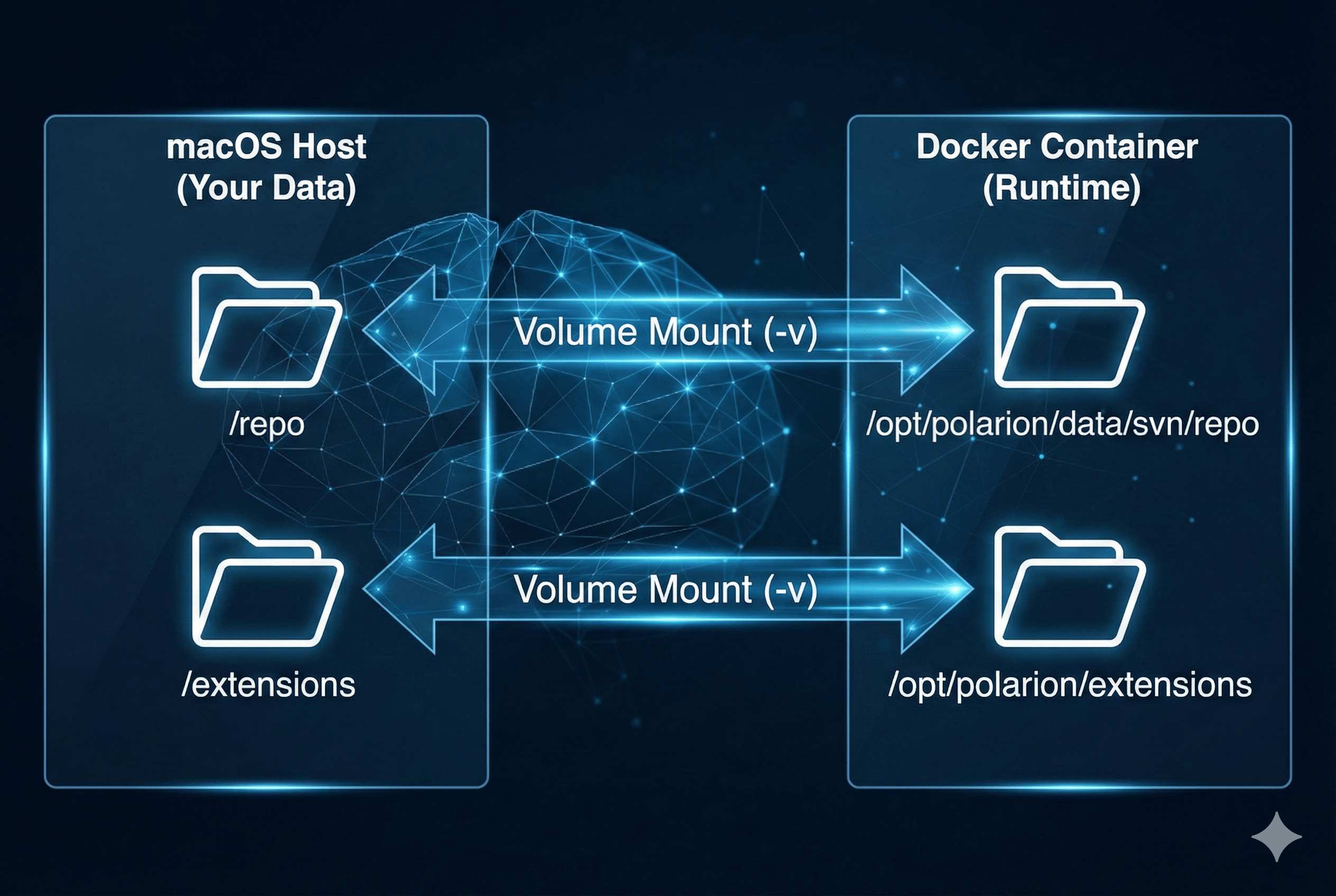
-v "/Users/your-user/Polarion/repo:/opt/polarion/repo" \
-v "/Users/your-user/Polarion/extensions:/opt/polarion/polarion/extensions"
Add the following volume mounts to your Docker command
Now, the container acts purely as the runtime execution engine, while your data remains safely on your operating system.
3. The Engine: redeploy.sh
Instead of relying on complex IDE plugins to move files around, I wrote a bash script. This script is the workhorse of my setup. It handles:
- Building: Runs Maven to package the extension (skipping tests for speed).
- Cleaning: Removes old versions of the JAR from the container to prevent conflicts.
- Deploying: Copies the new artifact directly into the container.
- Refreshing: Clears the OSGi cache and restarts the Polarion service.
I placed this script in ~/scripts/redeploy.sh. It’s designed to be context-aware—it knows which project you are currently working on based on the active file in VS Code.
4. The Cockpit: VS Code Configuration
To make this feel like a native IDE feature, I utilized Global User Settings. This means I don't have to configure tasks.json for every single repository I touch.
Global Tasks (tasks.json) I configured tasks to trigger the redeploy script and—my favorite feature—stream logs directly into the VS Code terminal.
- Polarion: Redeploy Active File: Triggers the build & deploy cycle.
- Polarion: Live Logs (Errors Only): Connects to the Docker container and runs
tail -f, filtering forERRORandException. This is a game-changer for debugging.
Global Launch Config (settings.json) For the debugger, I added a global launch configuration "Attach to Polarion (5005)". This allows me to attach to the JVM with one click, regardless of which project folder is open.
The Workflow
So, what does this look like in practice?
- Coding: I write my Java code or Velocity templates in VS Code.
- Logic Changes (Hot Code Replace): If I just change method logic, I hit
F5to attach the debugger. VS Code hot-swaps the code instantly into the running Docker container. No restart needed. - Structural Changes: If I add a new class or change
plugin.xml, I run the Redeploy task (Cmd+Shift+P). The script builds, cleans, and restarts the service automatically. - Debugging: If something breaks, I don't tab out to a terminal. I run the Live Logs task and see the stack trace right next to my code.
Conclusion
I’ve been using this setup for several weeks now, and it has completely transformed my workflow. The redeployment is so fast—clocking in at just 15–30 seconds—that I often find myself triggering a full redeploy because it's so convenient, even though JDWP debugging and Hot Code Replacement work perfectly when I need them.
What I value most is the flexibility: everything stays within VS Code. I can toggle my debug sessions, logs or AI tools on and off as needed, while my Polarion instance continues to run reliably in the background.
Combined with AI integrations and tailored extensions, the work feels significantly more targeted and efficient. This setup finally provides the modern, high-speed development experience I was looking for. If you’re ready to move away from heavy, sluggish environments, I highly recommend giving this a try.
Appendix: The Configuration
The redeploy.sh Script
Save this to ~/scripts/redeploy.sh and make it executable (chmod +x)
#!/bin/bash

# --- PARAMETERS ---
# $1: File or Directory path (Source context from VS Code)
# $2: Container Name (default: polarion)
# $3: Extension Name/Target Folder (default: boesger)
INPUT_PATH="$1"
CONTAINER_NAME="$2"
EXTENSION_NAME="$3"

# Start timer
START_TIME=$(date +%s)

# Set defaults
: "${CONTAINER_NAME:=polarion}"
: "${EXTENSION_NAME:=boesger}"

# Check: Was input provided?
if [ -z "$INPUT_PATH" ]; then
    echo "❌ Error: No path provided. Please open a file in the editor."
    exit 1
fi

echo "DEBUG: Input Path received: $INPUT_PATH"

# --- INTELLIGENT PATH LOGIC ---
if [ -d "$INPUT_PATH" ]; then
    cd "$INPUT_PATH" || exit 1
elif [ -f "$INPUT_PATH" ]; then
    cd "$(dirname "$INPUT_PATH")" || exit 1
else
    echo "❌ Error: Path does not exist: $INPUT_PATH"
    exit 1
fi

# Traverse up to find pom.xml
FOUND_POM=0
for i in {1..10}; do
    if [ -f "pom.xml" ]; then
        FOUND_POM=1
        break
    fi
    if [ "$PWD" == "/" ]; then break; fi
    cd ..
done

if [ $FOUND_POM -eq 0 ]; then
    echo "❌ No pom.xml found in hierarchy (starting from $INPUT_PATH)!"
    exit 1
fi

PROJECT_ROOT="$PWD"
echo "📂 Project Root detected: $PROJECT_ROOT"

# --- CONFIGURATION ---
PLUGIN_DEST="/opt/polarion/polarion/extensions/$EXTENSION_NAME/eclipse/plugins/"
CACHE_PATH="/opt/polarion/data/workspace/.config"
METADATA_PATH="/opt/polarion/data/workspace/.metadata"

echo "🚀 [1/5] Building Extension (Skipping Tests)..."
# Use wrapper if available
if [ -f "./mvnw" ]; then
    ./mvnw clean package -Dmaven.test.skip=true
else
    mvn clean package -Dmaven.test.skip=true
fi

if [ $? -ne 0 ]; then
    echo "❌ Build failed. Aborting."
    exit 1
fi

echo "🔍 Identifying JAR..."
JAR_FILE_NAME=$(ls target/*.jar | grep -v 'original-' | grep -v 'sources' | grep -v 'javadoc' | head -n 1)

if [ -z "$JAR_FILE_NAME" ]; then
    echo "❌ No suitable JAR found in target/!"
    exit 1
fi

echo "📂 [2/5] Ensuring directory structure inside Docker..."
docker exec "$CONTAINER_NAME" mkdir -p "$PLUGIN_DEST"

# --- SMART CLEANUP LOGIC ---
JAR_BASENAME=$(basename "$JAR_FILE_NAME")
BUNDLE_NAME="${JAR_BASENAME%%_*}" # Extract name before version

if [ "$BUNDLE_NAME" == "$JAR_BASENAME" ]; then
    BUNDLE_NAME=$(echo "$JAR_BASENAME" | sed -E 's/-[0-9].*//')
fi

echo "🗑️ [2.5/5] Cleaning old versions of '$BUNDLE_NAME'..."
docker exec "$CONTAINER_NAME" sh -c "rm -f ${PLUGIN_DEST}${BUNDLE_NAME}_*.jar ${PLUGIN_DEST}${BUNDLE_NAME}-*.jar"

echo "⏹️ [3/5] Stopping Polarion Service..."
docker exec "$CONTAINER_NAME" service polarion stop

echo "🧹 [4/5] Clearing Cache while service is stopped..."
docker exec "$CONTAINER_NAME" rm -rf "$CACHE_PATH"
docker exec "$CONTAINER_NAME" rm -rf "$METADATA_PATH"

echo "📦 [5/6] Copying $(basename "$JAR_FILE_NAME")..."
docker cp "$JAR_FILE_NAME" "$CONTAINER_NAME:$PLUGIN_DEST"

echo "▶️ [6/6] Starting Polarion Service..."
docker exec "$CONTAINER_NAME" service polarion start

END_TIME=$(date +%s)
DURATION=$((END_TIME - START_TIME))
echo "✅ Done in ${DURATION}s."
redeploy.sh
VS Code Global Tasks (tasks.json)
Add this to your Global User Tasks configuration
{
  "version": "2.0.0",
  "tasks": [
    {
      "label": "Polarion: Live Logs",
      "type": "shell",
      "command": "docker",
      "args": [
        "exec",
        "-i",
        "polarion",
        "sh",
        "-c",
        "tail -f $(ls -t /opt/polarion/data/logs/main/*.log | head -n 1)"
      ],
      "presentation": {
        "echo": false,
        "reveal": "always",
        "focus": false,
        "panel": "new"
      }
    },
    {
      "label": "Polarion: Live Errors ONLY",
      "type": "process",
      "command": "docker",
      "args": [
        "exec",
        "-i",
        "polarion",
        "sh",
        "-c",
        "tail -f $(ls -t /opt/polarion/data/logs/main/*.log | head -n 1) | grep --line-buffered -E 'ERROR|Exception|Caused by'"
      ],
      "presentation": {
        "echo": false,
        "reveal": "always",
        "focus": false,
        "panel": "new",
        "group": "polarion-logs"
      },
      "isBackground": true,
      "problemMatcher": []
    },
    {
      "label": "Polarion: Redeploy",
      "type": "shell",
      "command": "${workspaceFolder}/../redeploy.sh",
      "args": [
        "${file}",
        "polarion",
        "boesger"
      ],
      "presentation": {
        "reveal": "always",
        "panel": "shared"
      },
      "problemMatcher": []
    }
  ]
}
tasks.json
VS Code Global Settings (settings.json)
Add this to your Global User Settings
{
    "launch": {
        "version": "0.2.0",
        "configurations": [
            {
                "type": "java",
                "name": "Global: Attach to Polarion (5005)",
                "request": "attach",
                "hostName": "127.0.0.1",
                "port": 5005,
                "projectName": "${fileWorkspaceFolderBasename}"
            }
        ]
    }
}
settings.json