Docker From Zero. Everything You Actually Need.
Everything you need to go from zero to running containers: the core concepts, the CLI commands you will actually use, Docker Compose, building your own images — and which runtime to pick on macOS, Windows, and Linux.


Every developer has said it at least once: "Works on my machine." Docker exists because that sentence is not good enough.
This is a complete introduction to Docker: what it is, how to use it, how to set it up on any platform, what Docker Compose does and when not to use it, and how to build your own image from scratch. It also covers Apple's new native container tool, which shipped in 2025 and changes the options for Mac developers.
The examples are from the Polarion world because that is the context I work in — but every concept here applies to any containerized application.
If you are here for the Polarion setup specifically: everything you need is at github.com/phillipboesger/polarion-docker — the full Docker image, build scripts, VS Code integration, and platform-specific notes for macOS, Windows, and Linux. This post explains the Docker concepts behind it.
Table of Contents
- The Problem Docker Solves
- Images, Containers, and Registries
- Your First Container
- Ports: Talking to Your Container
- Volumes: Keeping Your Data
- DockerHub: Where Images Live
- Installing Docker: Your Platform, Your Options
- Docker Compose: When One Container Isn't Enough
- Building Your Own Image
- When Not to Use Docker
The Problem Docker Solves
Imagine handing a colleague your application and watching it fail immediately, on the same operating system, with the same code. The issue turns out to be a different Java version, a missing environment variable, or a library that behaves differently on their machine.
Docker solves this by packaging everything together: the application, its runtime, its dependencies, and its configuration. All of it. In one unit. That unit runs the same way everywhere, regardless of what is installed on the host.
The key concept is a container: a lightweight, isolated process that has its own filesystem, its own network, and its own dependencies, but shares the host operating system's kernel. It is not a virtual machine. A VM boots a full OS, takes minutes to start, and consumes gigabytes. A container starts in seconds and takes megabytes.
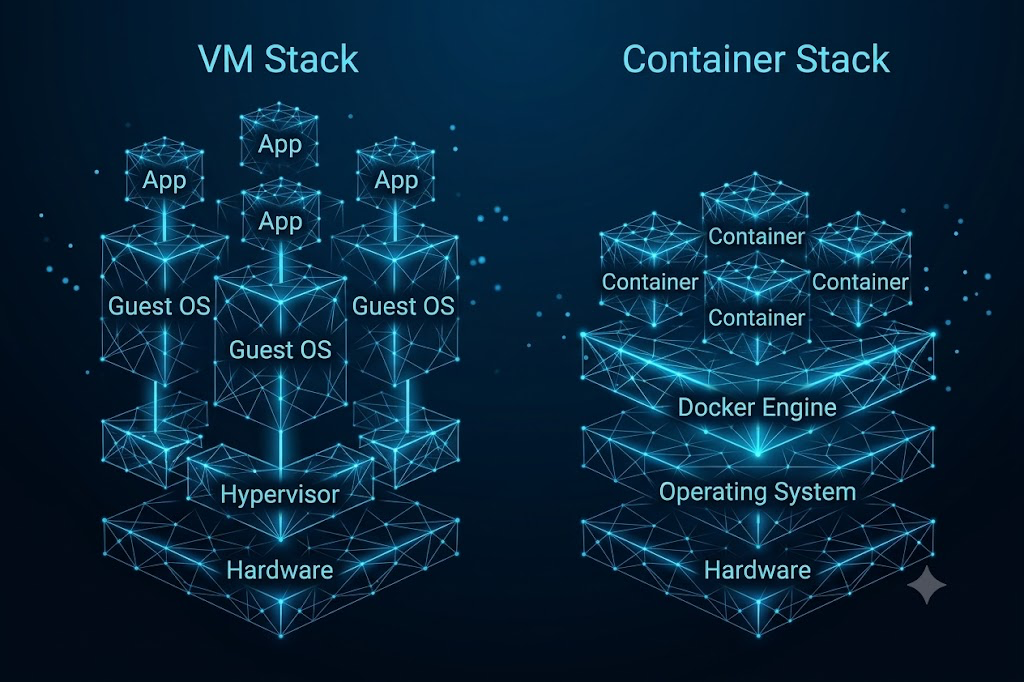
The practical difference: you can run ten containers on a laptop and barely feel them. Ten VMs would slow it to a crawl.
Images, Containers, and Registries
Three terms come up constantly. They are worth separating clearly.
An image is the blueprint. It is read-only, immutable, and describes what the container will contain: which OS layer, which software, which files, which startup command. You build images from a Dockerfile, or you pull existing ones from a registry.
A container is a running instance of an image. You can start ten containers from the same image. Each runs independently, with its own state. When a container stops, any data written inside it is gone unless you explicitly saved it somewhere permanent (more on that in the Volumes section).
A registry is where images are stored and shared. The public default is DockerHub. Most official software (Postgres, Redis, Node, Python) has an image there that you can pull and run in seconds. Some images live on other registries — GitHub Container Registry (ghcr.io) is common for project-specific images, including the Polarion dev environment used in these examples.
The flow is always the same: pull an image from a registry, run a container from that image, work with the running container.
Your First Container
If Docker is installed, this is all it takes to confirm the setup works:
docker run hello-world
Docker pulls the hello-world image from DockerHub, starts a container, prints a confirmation message, and exits. Done.
Something more realistic: running Polarion locally. The image used here comes from the phillipboesger/polarion-docker repository, which handles the full setup including WebSocket config, PostgreSQL, and VS Code integration.
docker run -d \
  --name polarion \
  --platform linux/amd64 \
  -p 80:80 \
  -p 5005:5005 \
  ghcr.io/phillipboesger/polarion-docker:latest
Break that down:
-druns the container in the background (detached). Without it, the container's output streams into your terminal and blocks it.--name polariongives the container a name so you can reference it easily instead of using its generated ID.--platform linux/amd64tells Docker which architecture to use. Polarion runs on x86 — this flag ensures the right image variant is pulled on Apple Silicon or any ARM machine.-p 80:80maps port 80 on your machine to port 80 inside the container. Openhttp://localhostand you see the Polarion login page.-p 5005:5005exposes the JDWP debug port so VS Code can attach a remote debugger.ghcr.io/phillipboesger/polarion-docker:latestis the full image reference including the registry host.
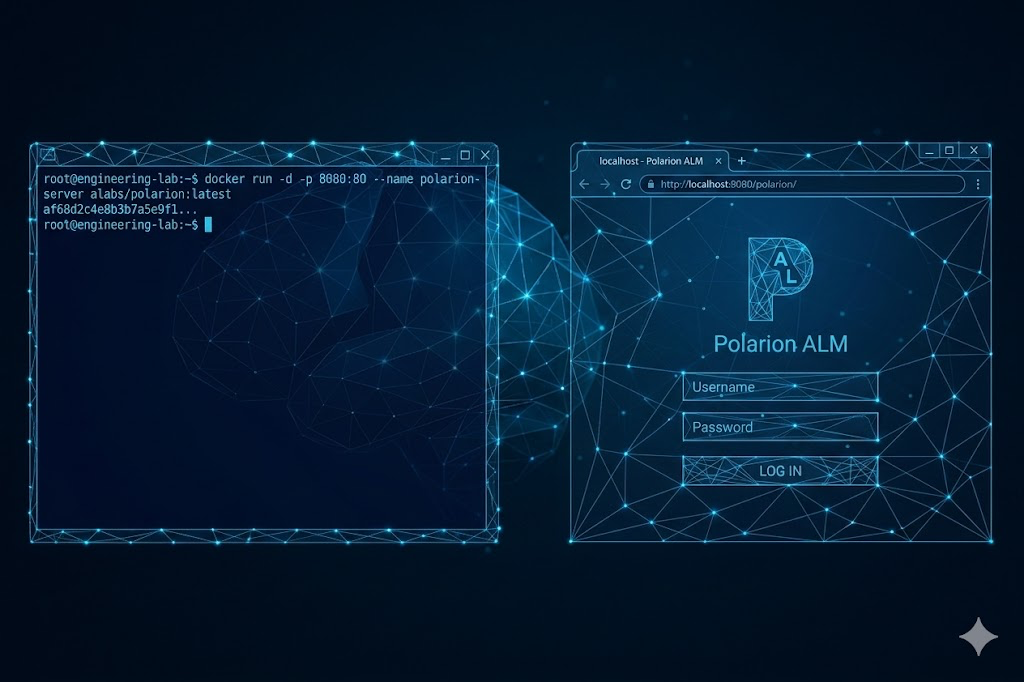
A few commands you will use constantly:
docker ps              # list running containers
docker ps -a           # list all containers, including stopped ones
docker stop polarion   # stop a running container
docker rm polarion     # remove a stopped container
docker logs polarion   # view the container's output
docker logs -f polarion  # follow logs in real time
docker stop followed by docker rm is the clean way to tear down a container. docker rm -f forces both in one step, which is useful during development.
Ports: Talking to Your Container
A container runs in isolation. By default, nothing from outside can reach it. If Polarion listens on port 80 inside the container, your browser cannot reach it unless you explicitly map it.
The -p flag does that mapping: -p <host_port>:<container_port>.
docker run -d -p 80:80 ghcr.io/phillipboesger/polarion-docker:latest
Port 80 on your machine forwards to port 80 inside the container. The two ports do not have to match:
docker run -d -p 9080:80 ghcr.io/phillipboesger/polarion-docker:latest
Here Polarion still listens on 80 inside the container, but you reach it at localhost:9080 on your machine. This is useful when multiple containers each expose the same internal port — you map them to different host ports. Running two Polarion instances for different customers, for example.
You can expose multiple ports in one command:
docker run -d \
  -p 80:80 \
  -p 5005:5005 \
  -p 5433:5432 \
  ghcr.io/phillipboesger/polarion-docker:latest
Port 5005 for the debugger, 5433 for direct PostgreSQL access (mapped from the container's internal 5432 to avoid conflicts with a local Postgres instance).
You can also restrict which network interface accepts the connection:
docker run -d -p 127.0.0.1:80:80 ghcr.io/phillipboesger/polarion-docker:latest
This makes the container only reachable from your local machine, not from other machines on the same network. Useful for development environments you do not want accidentally exposed.
Volumes: Keeping Your Data
Containers are ephemeral. Everything written inside a container disappears when the container is removed. That is intentional: it keeps containers stateless and reproducible. But it also means you need a deliberate strategy for anything that should persist.
That strategy is volumes.
Bind mounts map a directory on your host machine directly into the container:
docker run -d \
  --name polarion \
  --platform linux/amd64 \
  -p 80:80 \
  -p 5005:5005 \
  -v /Users/you/polarion-data:/opt/polarion/data \
  ghcr.io/phillipboesger/polarion-docker:latest
The -v /Users/you/polarion-data:/opt/polarion/data flag means: mount the polarion-data folder from your machine into the container at that path. Polarion writes its workspace, configuration, and repository data there. Stop the container, remove it, run a new one with the same flag, and all the data is still there.
Named volumes are managed by Docker instead of you:
docker volume create polarion-data
docker run -d \
  --name polarion \
  -v polarion-data:/opt/polarion/data \
  ghcr.io/phillipboesger/polarion-docker:latest
Docker handles where the data lives on disk. You reference it by name. Named volumes are more portable and easier to back up than bind mounts, and they perform better on macOS (because they live inside the Linux VM instead of crossing the filesystem boundary).
For development, bind mounts are often the right choice: you want to see and edit files directly. For persistent service data that you do not need to access from outside the container, named volumes are cleaner.
DockerHub: Where Images Live
DockerHub is the default public registry for Docker images. Every docker pull or docker run with no registry prefix points there by default.
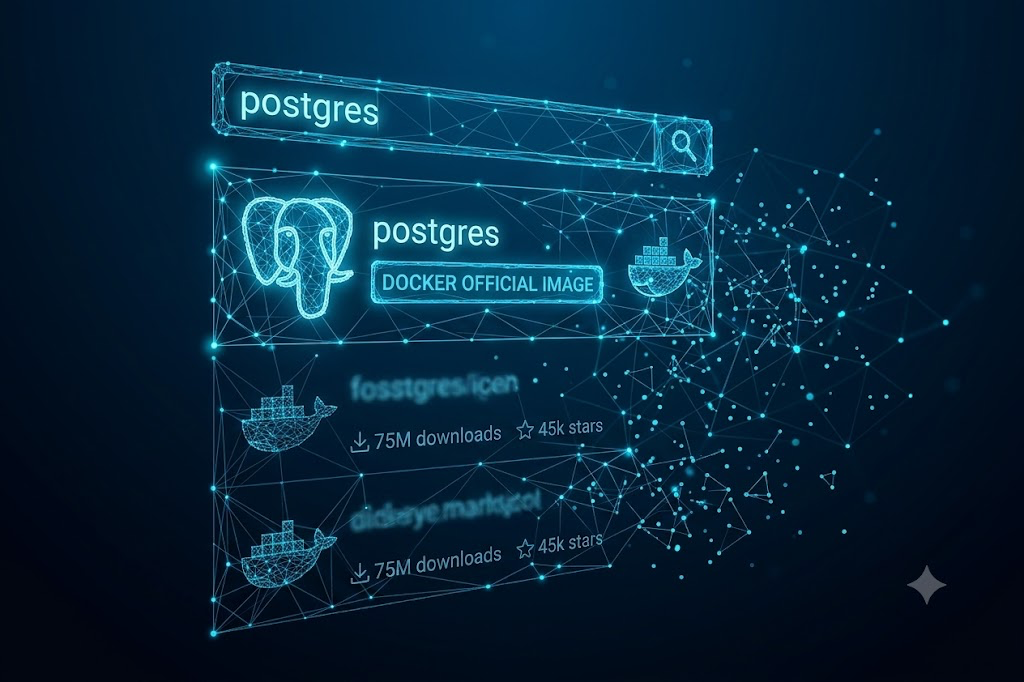
When you search for an image, look for the Docker Official Image badge first. Official images are maintained by Docker or the software's own team. They are well-documented, regularly updated, and follow consistent conventions.
Images have tags that identify versions:
docker pull postgres:16
docker pull postgres:16.2
docker pull postgres:latest   # always the most recent release
latest sounds useful but is risky in practice. If the image updates and you pull again, you might get a different version than before. For anything beyond quick experiments, pin to a specific version tag.
Not everything lives on DockerHub. GitHub Container Registry (ghcr.io) is widely used for project-specific and private images. The Polarion dev image used in this post lives there. Other common registries are Amazon ECR, Google Artifact Registry, and Azure Container Registry. The Docker CLI handles all of them the same way — you just prefix the image name with the registry host:
# DockerHub (no prefix needed)
docker pull postgres:16

# GitHub Container Registry
docker pull ghcr.io/phillipboesger/polarion-docker:latest

# Amazon ECR
docker pull 123456789.dkr.ecr.eu-central-1.amazonaws.com/my-app:1.0
You can push your own images after logging in:
docker login ghcr.io
docker push ghcr.io/yourname/my-image:1.0
DockerHub has a free tier with public repositories. For private images, GitHub Container Registry is free for public repos and generous with private ones if you are already using GitHub.
Installing Docker: Your Platform, Your Options
Docker's experience varies significantly by operating system. The reason comes down to one technical fact: Docker containers run Linux. On Linux hosts, containers share the host kernel directly — no overhead, no abstraction layer. On macOS and Windows, Docker has to run a lightweight Linux VM underneath, and all containers run inside that VM. That extra layer has a cost.
Linux is Docker's native environment. Installation is a single command and you are done:
# Debian/Ubuntu
sudo apt install docker.io docker-compose-plugin

# Or via Docker's own repository for the latest version
curl -fsSL https://get.docker.com | sh
Containers share your host kernel. No VM, no filesystem overhead. If performance matters, Linux is the answer.
Windows requires a Linux VM layer. Docker Desktop on Windows uses WSL2 (Windows Subsystem for Linux 2) as its backend. WSL2 is a proper Linux kernel running inside a lightweight Hyper-V VM, and it is what makes the Windows Docker experience usable.
# Enable WSL2 first (run as admin)
wsl --install

# Then download and run the Docker Desktop installer from docker.com
If you want a lighter option without the Docker Desktop wrapper, Rancher Desktop is a solid alternative on Windows. It uses the same WSL2 backend but is leaner on resources and does not require a commercial license for enterprise use (Docker Desktop does, above a certain company size).
macOS has the most options. Like Windows, macOS needs a Linux VM layer — but the Apple Silicon transition and Apple's investment in virtualization have produced some genuinely good alternatives to Docker Desktop.
Docker Desktop is the official and most familiar option. It handles the VM automatically, provides a UI for managing containers, and integrates with Kubernetes. The downside: it is slow to start (20 to 30 seconds), heavy on memory (around 3 GB idle), and filesystem performance between your Mac and containers is noticeably slower than native.
OrbStack is a macOS-native alternative built from scratch to use Apple's Virtualization framework. Same Docker API, same CLI, same images and Compose files. It starts in about 2 seconds, uses roughly a third of the memory Docker Desktop does, and delivers near-native filesystem performance through VirtioFS with dynamic caching.
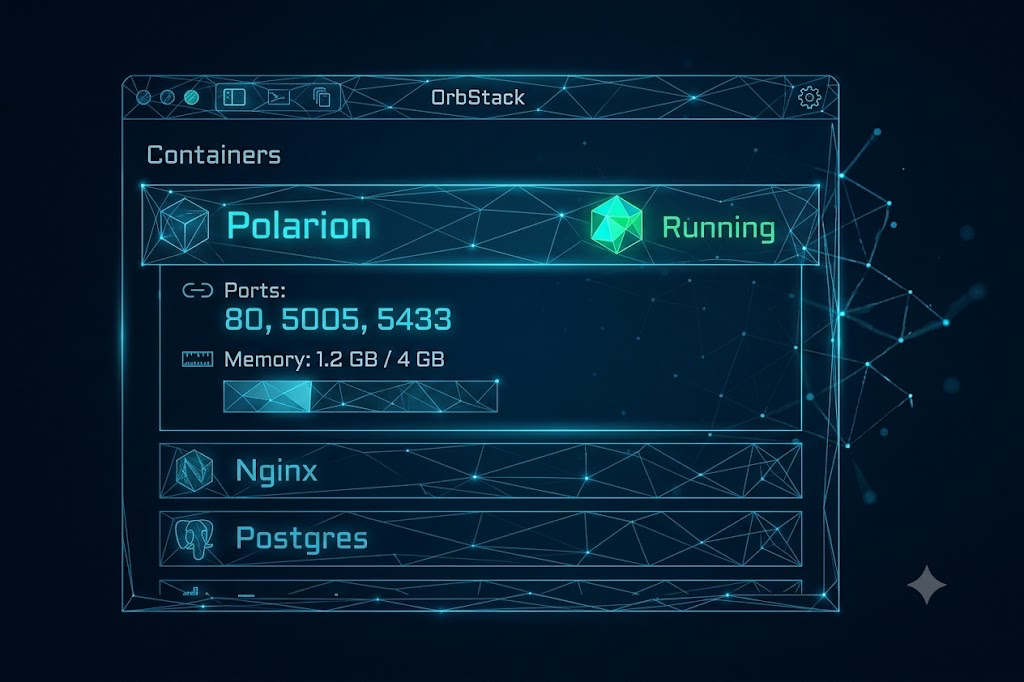
If you are on a Mac and doing any serious amount of Docker work, I would switch to OrbStack. Docker Desktop remains the standard for teams with existing tooling or Kubernetes needs, but for individual development OrbStack is simply faster and less in the way.
Apple Containers is the newest option, announced at WWDC 2025. Apple built a native containerization framework for macOS and released both the framework and a container CLI as open source. The architecture is different from Docker: instead of running all containers inside a single shared Linux VM, Apple runs each container in its own lightweight VM. Stronger isolation, subsecond startup times.
# Apple's CLI uses "container", not "docker"
container run -p 80:80 --platform linux/amd64 \
  ghcr.io/phillipboesger/polarion-docker:latest
OCI-compatible images work with it, and Docker Compose files are compatible too. The Polarion Docker repo has a dedicated setup guide for Apple Containers: docs/apple-container.md.
The honest state of it in mid-2026: Apple Containers is promising, and the per-container VM model is genuinely interesting for security-sensitive workloads. But the ecosystem tooling is still catching up to Docker's years of maturity. For a stable development environment today, OrbStack is still the safer choice. Apple Containers is worth trying for new projects where you want native macOS integration from the start.
Docker Compose: When One Container Isn't Enough
Real applications rarely run as a single container. A Polarion development setup, for example, might need Polarion itself running alongside a dedicated test database and an integration test runner. The polarion-docker repo ships a Compose file that handles the full stack — the example below shows the principle. Managing that with separate docker run commands — keeping the networking right, remembering all the flags, starting them in the right order — gets unwieldy fast.
Docker Compose solves this with a single file: docker-compose.yml.
services:
  polarion:
    image: ghcr.io/phillipboesger/polarion-docker:latest
    platform: linux/amd64
    ports:
      - "80:80"
      - "5005:5005"
    volumes:
      - polarion-data:/opt/polarion/data

  plugin-tests:
    image: maven:3.9-eclipse-temurin-17
    volumes:
      - ./my-polarion-plugin:/app
    working_dir: /app
    command: mvn verify
    depends_on:
      - polarion

volumes:
  polarion-data:
example docker-compose.yml
Everything that was scattered across multiple docker run commands is now in one file, readable, version-controlled, and repeatable. Start the entire stack:
docker compose up -d
Stop and remove everything:
docker compose down
Compose handles networking automatically: containers in the same Compose file can reach each other by service name. The plugin-tests service above connects to Polarion at polarion:80 because that is the service name in the file.
When to use Docker Compose: any local development environment with more than one service. It is also the right tool for integration test setups where you need a real Polarion instance or database running during CI.
When not to use Docker Compose: production deployments at scale. Compose is not an orchestrator. It does not handle rolling deployments, auto-scaling, health-based restarts, or multi-host setups. For production, that job belongs to Kubernetes, ECS, or similar tools. Compose in production is a common mistake — it works until it does not, and the failure modes are hard to debug.
Building Your Own Image
Pulling existing images gets you far, but at some point you need to package your own application. For Polarion development, that typically means building a plugin JAR and either deploying it into a running container or baking it into a custom image for testing. Either way starts with a Dockerfile.
FROM eclipse-temurin:17-jdk-jammy

WORKDIR /plugin

COPY target/my-polarion-plugin.jar plugin.jar

EXPOSE 8080

CMD ["java", "-jar", "plugin.jar"]
Each line is a layer:
FROMsets the base image. You always start from something.eclipse-temurin:17-jdk-jammygives you a JDK 17 on Ubuntu Jammy.WORKDIRsets the working directory inside the container. Creates it if it does not exist.COPYcopies files from your machine into the image.EXPOSEdocuments which port the container listens on. It does not actually publish the port — that still happens with-pat runtime. Think of it as metadata.CMDdefines the default command that runs when the container starts.
Build the image:
docker build -t my-polarion-plugin:1.0 .
-t my-polarion-plugin:1.0 sets the name and tag. The . at the end tells Docker to look for the Dockerfile in the current directory.
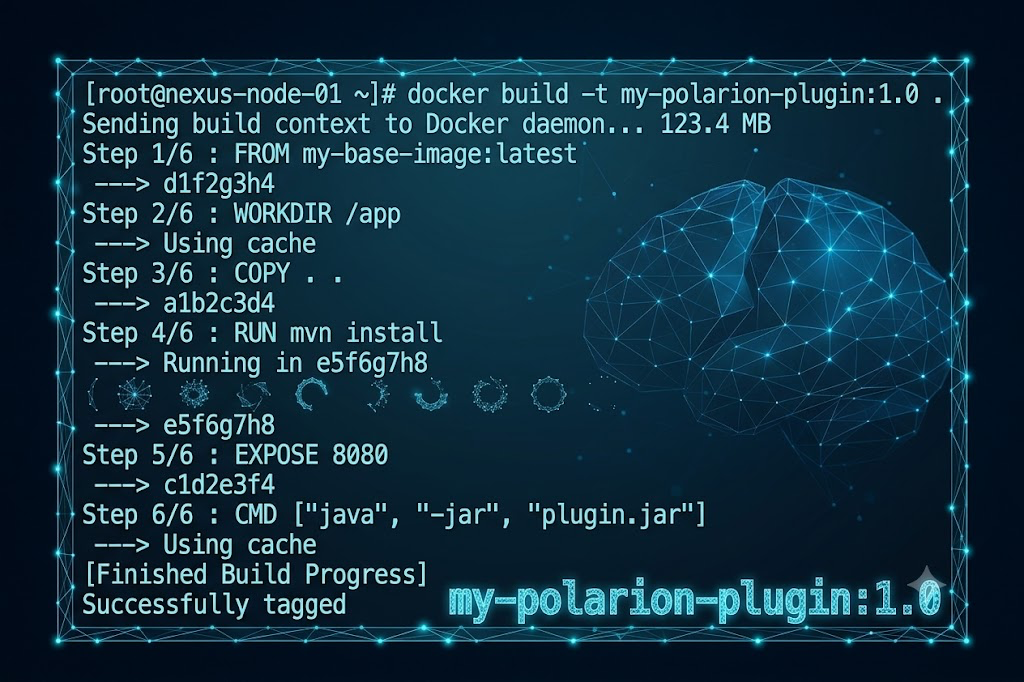
Layer caching matters. Docker caches each layer. If nothing changed in a layer since the last build, Docker reuses the cached version and skips rebuilding it. This makes subsequent builds fast. But the cache is invalidated from the changed layer downward — everything after it rebuilds.
The practical consequence: put things that change rarely at the top of the Dockerfile and things that change frequently at the bottom. Dependencies before application code.
FROM eclipse-temurin:17-jdk-jammy

WORKDIR /plugin

# Copy and install dependencies first (changes rarely)
COPY pom.xml .
RUN mvn dependency:go-offline

# Copy application code last (changes often)
COPY src ./src
RUN mvn package -DskipTests

EXPOSE 8080
CMD ["java", "-jar", "target/my-polarion-plugin.jar"]
.dockerignore tells Docker which files to exclude when copying into the image. Put this in the same directory as your Dockerfile:
target/
.git/
*.log
Without a .dockerignore, Docker might copy gigabytes of build artifacts or version history into the image context, slowing down every build.
Multi-stage builds are worth knowing about once you get comfortable with the basics. The idea is to use one image for building (which includes Maven, test tools, and other build-time dependencies) and a separate, smaller image for running. The final image only contains what the application needs at runtime.
# Stage 1: Build the plugin
FROM maven:3.9-eclipse-temurin-17 AS builder
WORKDIR /plugin
COPY pom.xml .
RUN mvn dependency:go-offline
COPY src ./src
RUN mvn package -DskipTests

# Stage 2: Runtime image — JRE only, no Maven, no source
FROM eclipse-temurin:17-jre-jammy
WORKDIR /plugin
COPY --from=builder /plugin/target/my-polarion-plugin.jar plugin.jar
EXPOSE 8080
CMD ["java", "-jar", "plugin.jar"]
The final image contains only the JRE and the JAR. Smaller images mean faster pulls, less attack surface, and lower storage costs.
When Not to Use Docker
Docker is useful enough that there is a temptation to use it for everything. A few situations where it is not the right tool:
For production without an orchestrator. Docker Compose in production means you are managing container restarts, updates, and health checks manually or with scripts. That is fragile. Use an orchestrator.
When the setup overhead outweighs the benefit. A simple script that runs on one machine with a stable environment does not need containerization. Not everything is a distributed system.
When native performance is required. Filesystem-intensive workloads (certain databases, high-throughput file processing) can be slower in containers, especially on macOS and Windows where there is always a VM boundary to cross. Profile before assuming it is fine.
When you need persistent stateful services in the traditional sense. Docker is excellent for stateless applications. For stateful services like databases in production, the operational complexity of running them in containers is real. Many teams run their databases on managed cloud services and containerize everything else.
Docker is one of those tools that seems complicated until it clicks — and then you cannot imagine working without it. Start with docker run, get comfortable with ports and volumes, then move to Compose when you have more than one service to manage. Building your own images is the last step, and by the time you need it, the rest will already feel natural.
For the Polarion-specific setup — the full Docker repository, build scripts, and VS Code integration — everything is at polarion.boesger.com.
Questions or something that did not work as expected? Drop a comment below.