MCP for Polarion Developers: Let Copilot Read Your Backlog Directly
Every session started the same way: open Polarion, copy the ticket, paste the context into Copilot. That changed when I connected GitHub Copilot directly to Polarion via MCP. Here is what MCPs are, when they make sense, and how to configure the Polarion MCP in VS Code.

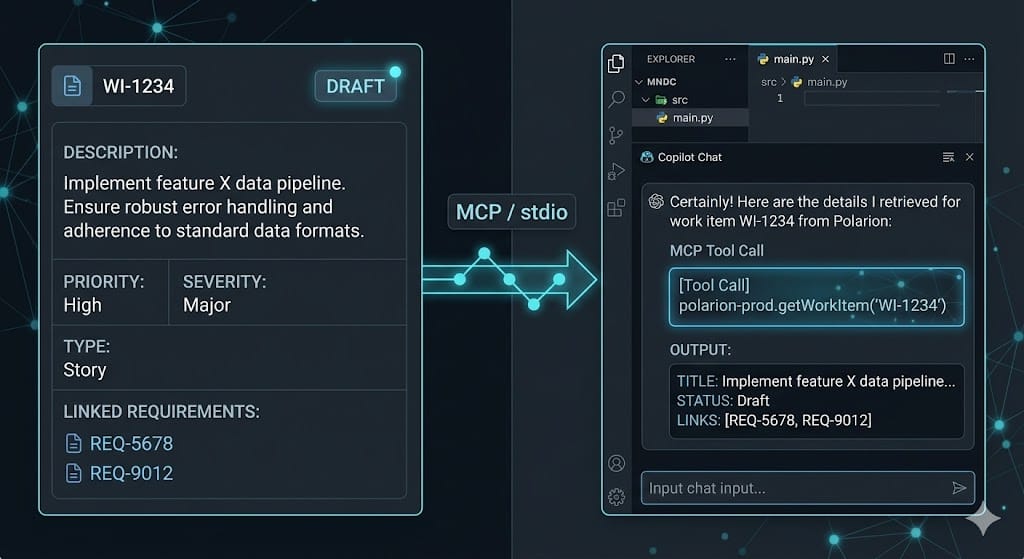
I had a session that started exactly like this: open Polarion, find the ticket, copy the description, paste it into Copilot Chat, ask for help. Then notice I missed the linked requirements, go back, copy those too. Then realize the acceptance criteria are in a document, not the work item itself. By the time I had the actual context Copilot needed, ten minutes were gone.
MCPs changed that. Once configured, Copilot can pull work item content, linked items, and documents directly from Polarion. The copy-paste loop disappears.
This week is about what MCPs are, where they make sense, and how to get the Polarion MCP running in VS Code.
Table of Contents
- What Is an MCP?
- When Does an MCP Actually Help?
- The Polarion MCP: What Copilot Can See
- Setting It Up in VS Code
- A Real Workflow: Branch Done, Documentation Done
- The Real Power Move: Combine MCP with a Knowledge Base Skill
- What We Are Practicing This Week
What Is an MCP?
The problem with AI assistants is not intelligence. It is reach. Copilot can help you implement a feature — but only if you tell it what the feature is supposed to do. If that knowledge lives in Polarion, in a database, or behind an API, Copilot cannot get there on its own. Every session starts with manual context transfer.
MCP (Model Context Protocol) is an open standard that solves this by giving AI tools a common, structured way to connect to external systems. Think of it like USB-C for AI: instead of every tool building its own custom connector to every service, MCP defines one protocol that works everywhere.